01
03
05
Chat Message Actions
This section covers some of the things you can do with the answers that you receive from Alexi.
Here’s a short video walking you through it!
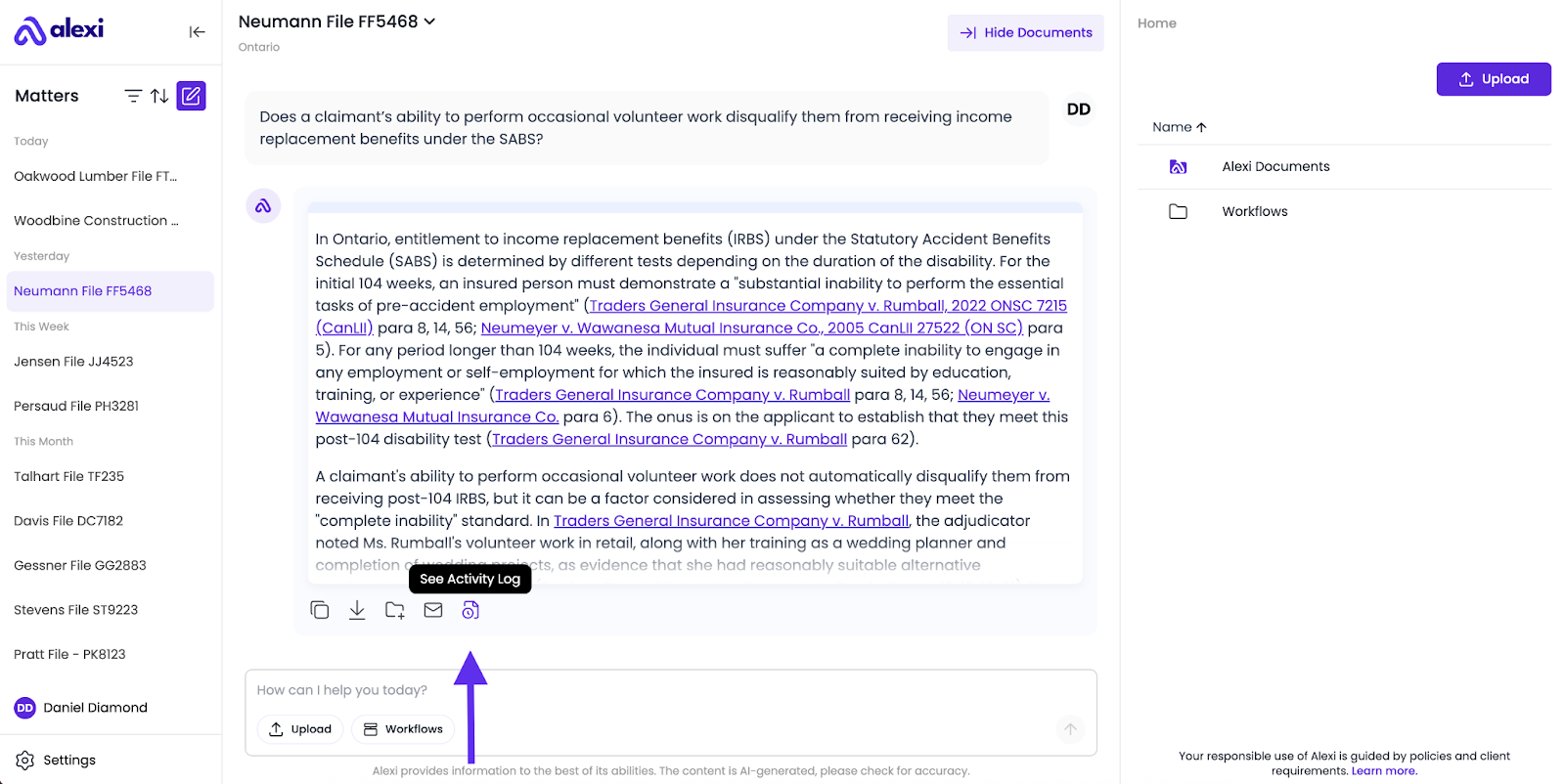
After Alexi generates a response, you have 5 distinct options:
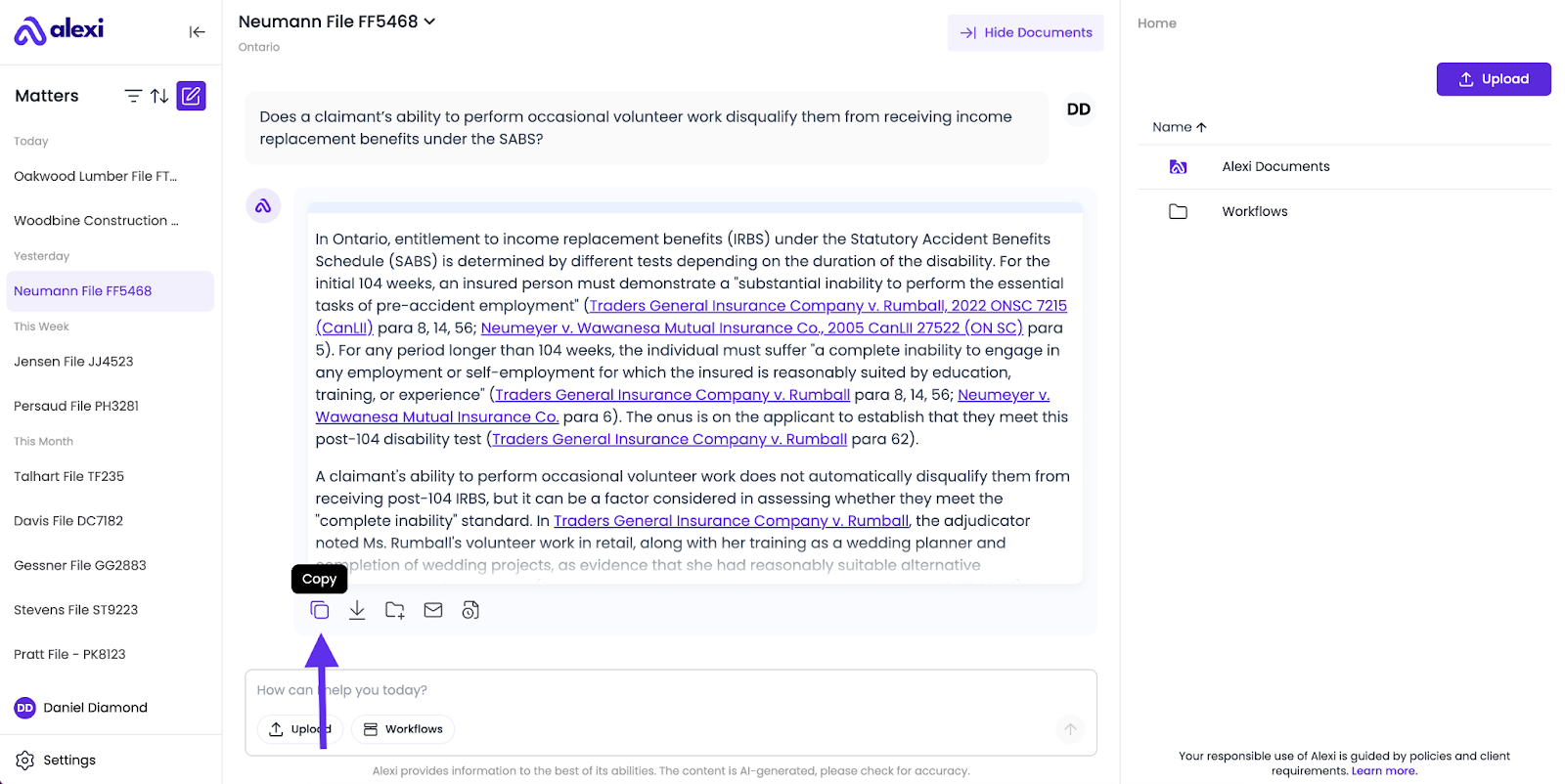
1. Copy the answer to your clipboard
Example: Copy a drafted clause into your Word document.
Example: Copy a document summary into an internal email for your team.
Example: Copy a research answer into a motion you’re working on.
2. Download the answer in PDF or Word format.
Example: Download a drafted agreement section to circulate to your client.
Example: Download a research memo summary as a PDF for your file.
Example: Download a file summary as an internal memo to your team.

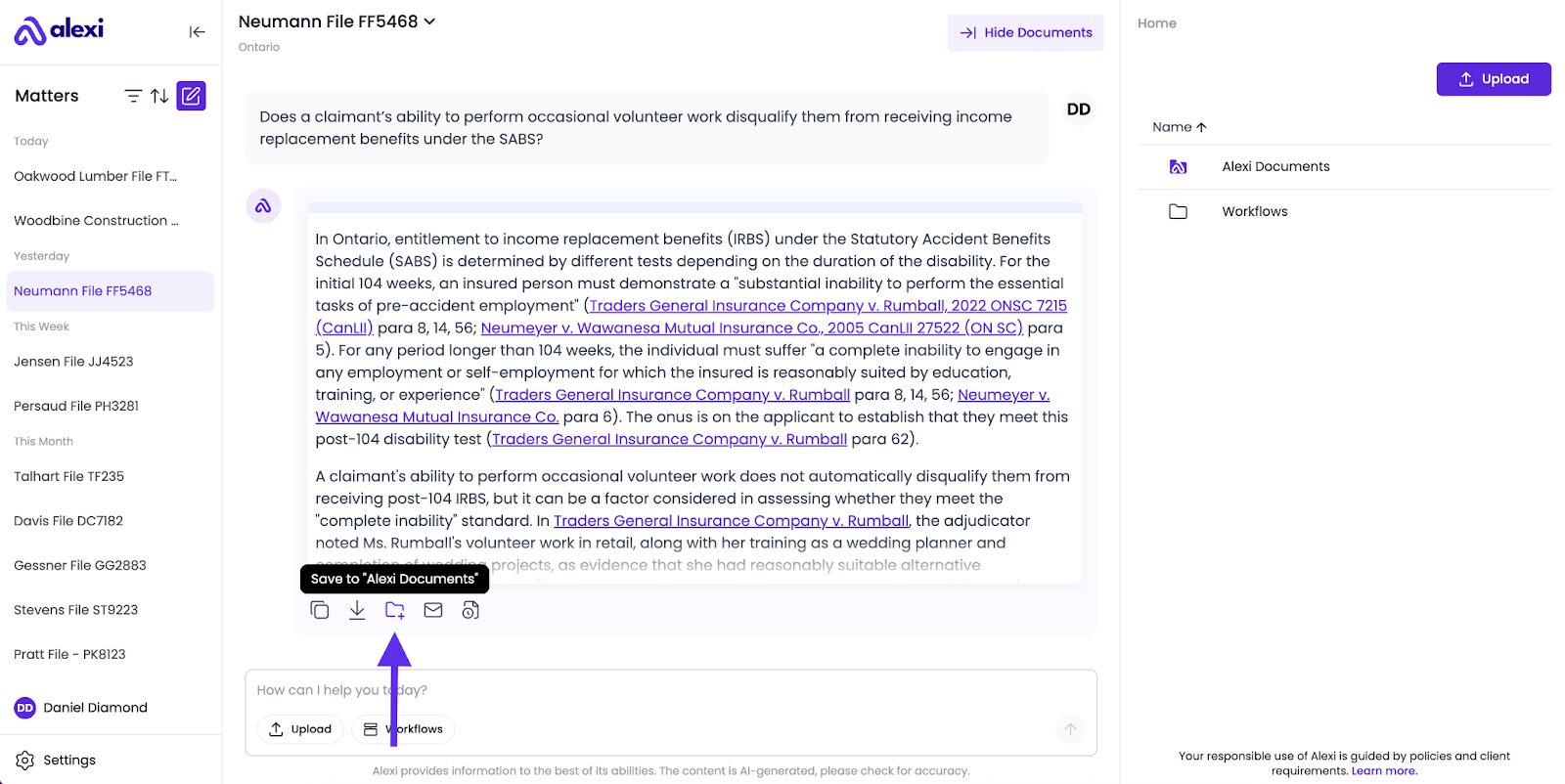
3. Save to Alexi Documents: Store the response in your matter’s centralized document folder.
Example: Collect multiple drafted clauses in one place for an employment agreement.
Example: Keep a record of legal memos connected to a single litigation matter.
Example: Collect multiple file summaries on different issues in a single spot.
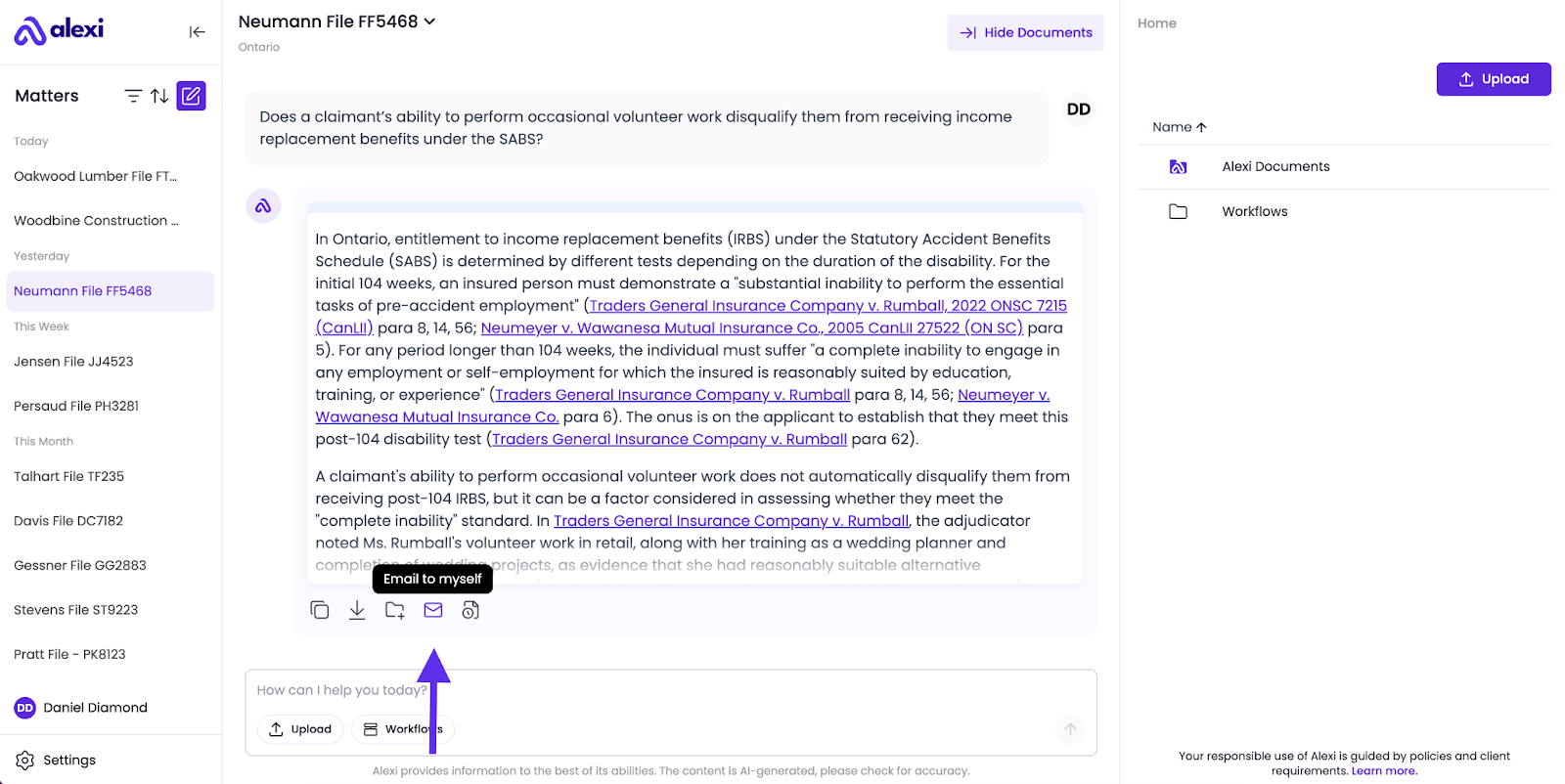
4. Email to Myself: Send the answer directly to your account’s email.
Example: Email a clause draft to review later while offline.
Example: Send a compliance checklist to yourself to forward to a client.
Example: Email a list of arguments to yourself to forward internally.
5. Activity Log: Review Alexi’s reasoning and process behind the response.
Example: Understand why Alexi drafted a clause a certain way.
Example: Double-check sources or logic used in a legal research summary.
Example: Understand which documents Alexi reviewed when performing its analysis.
FAQ
When should I copy vs. download an answer?
- Copy is best for quick transfer into another document you’re actively working on (e.g., pasting a clause into a contract draft).
- Download is best when you need a formatted DOC or PDF to save, share, or circulate outside Alexi.
Why save responses to your Matter Documents?
Saving to a matter keeps everything organized by matter or matter. Instead of hunting through past chats, you’ll have all your drafted clauses, summaries, or memos in one place.
Saving a response allows you to use it as context in other chat threads. This provides the AI with memory of previous interactions, enabling it to build upon prior answers and provide more relevant and improved responses.
What is the benefit of the Activity Log?
The Activity Log gives transparency into Alexi’s reasoning. This helps lawyers validate Alexi’s approach and use the insights with confidence. Think of it as viewing the thought process behind the answer.
Can I perform multiple actions on the same message?
Yes. For example, you can first copy a clause into your draft, then save the same clause into the matter folder for future reference.
Can I download an entire chat thread within a Matter?
Yes. Simply head over to the left-hand panel, and click the 3 dots next to the matter name, then click “Download Chat History” and it will download the entire conversation in PDF format.