01
03
05
Document Analysis
This section demonstrates how to attach documents for analysis by Alexi.
Uploading documents provides Alexi with the relevant context in your matter, improves accuracy, and enables answers to be more closely linked to your materials. It's like giving Alexi access to the same binder of case documents, agreements, or discovery records that you'd give someone on your team before asking them a question.
Here’s a short video guide on the topic.
To upload a document:
- On the navigation panel on the right-hand side click the large purple Upload Document button.
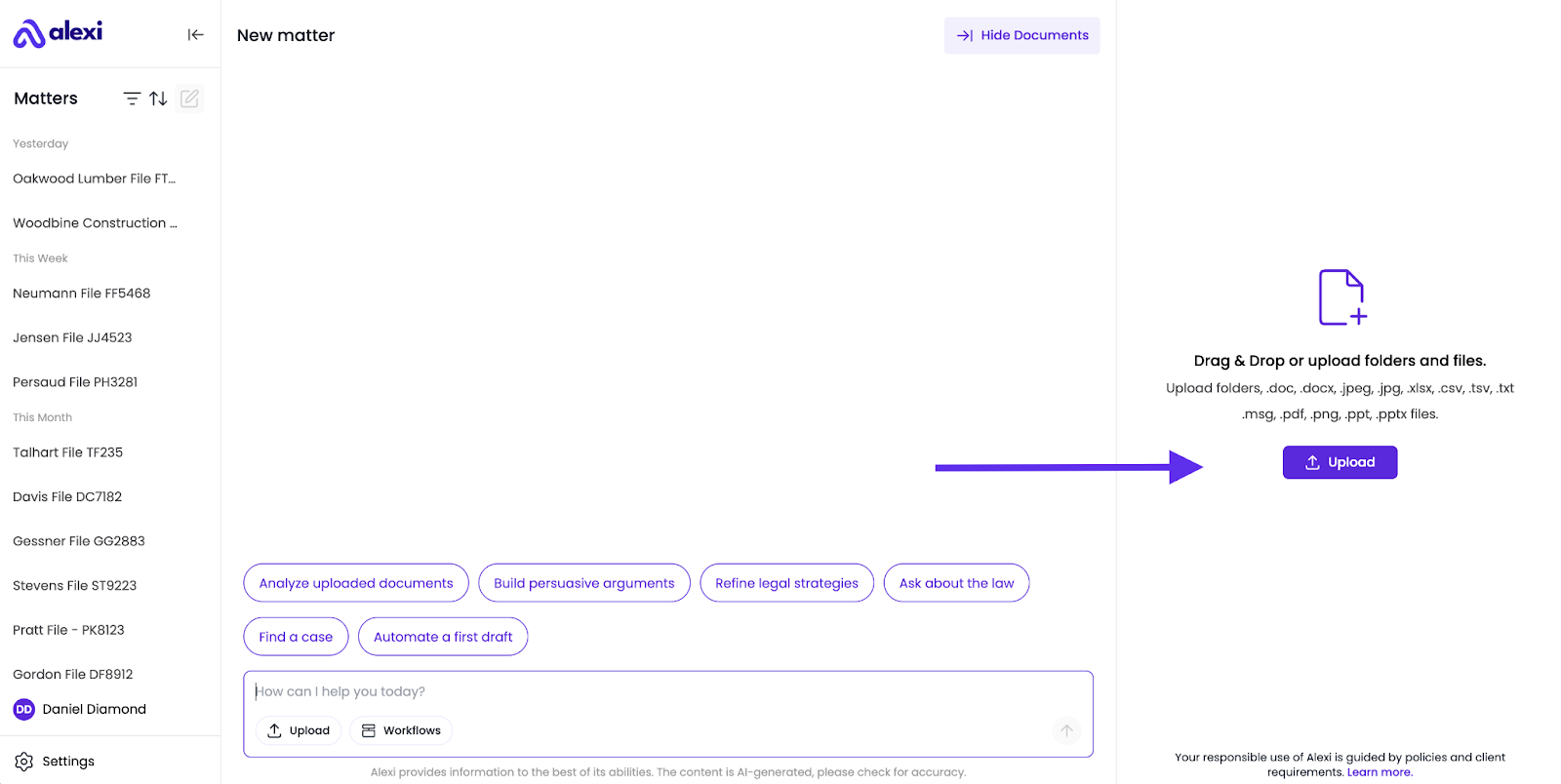
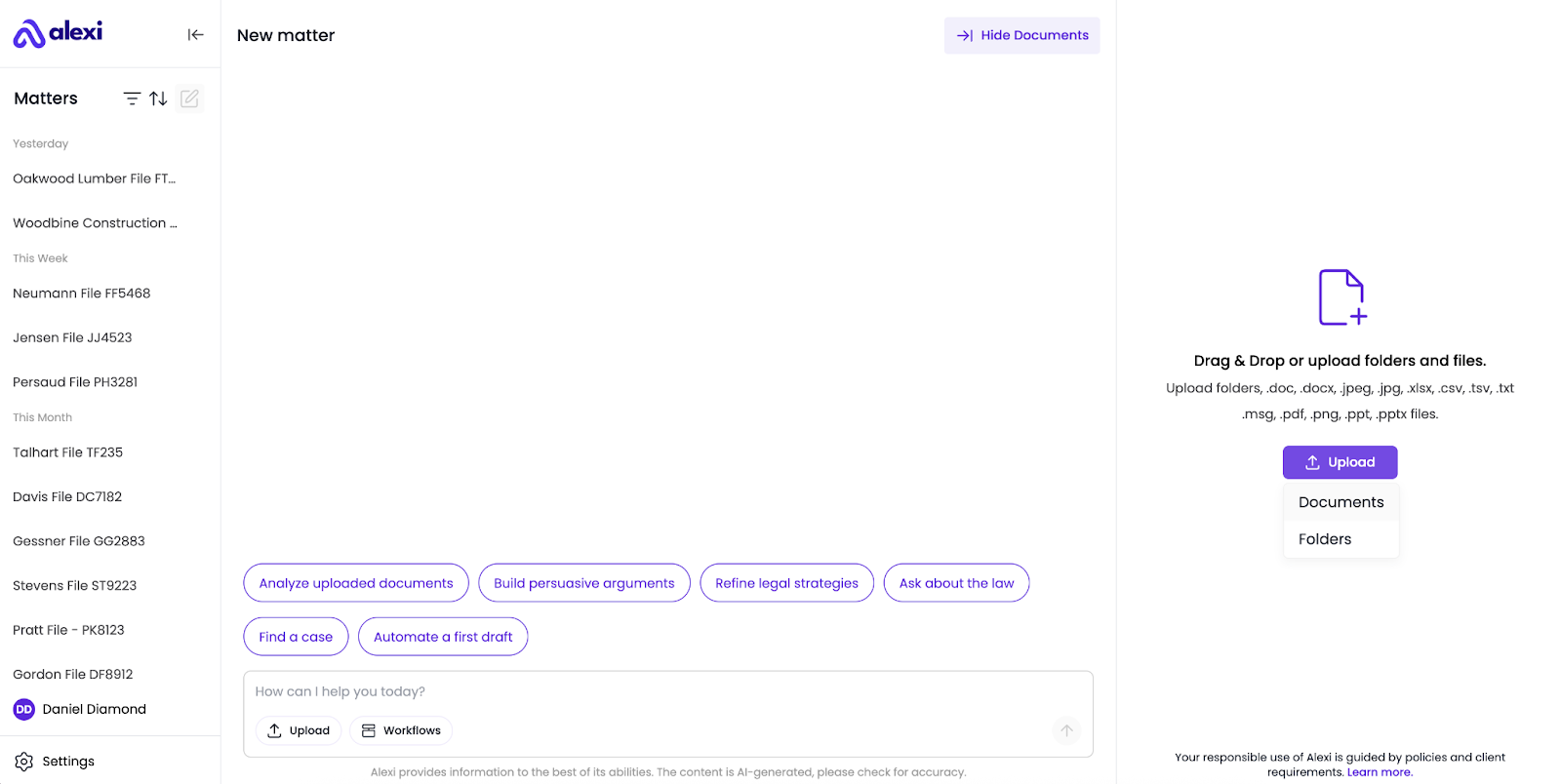
2. You’ll be given the choice between uploading Documents or entire Folders. Make your selection.
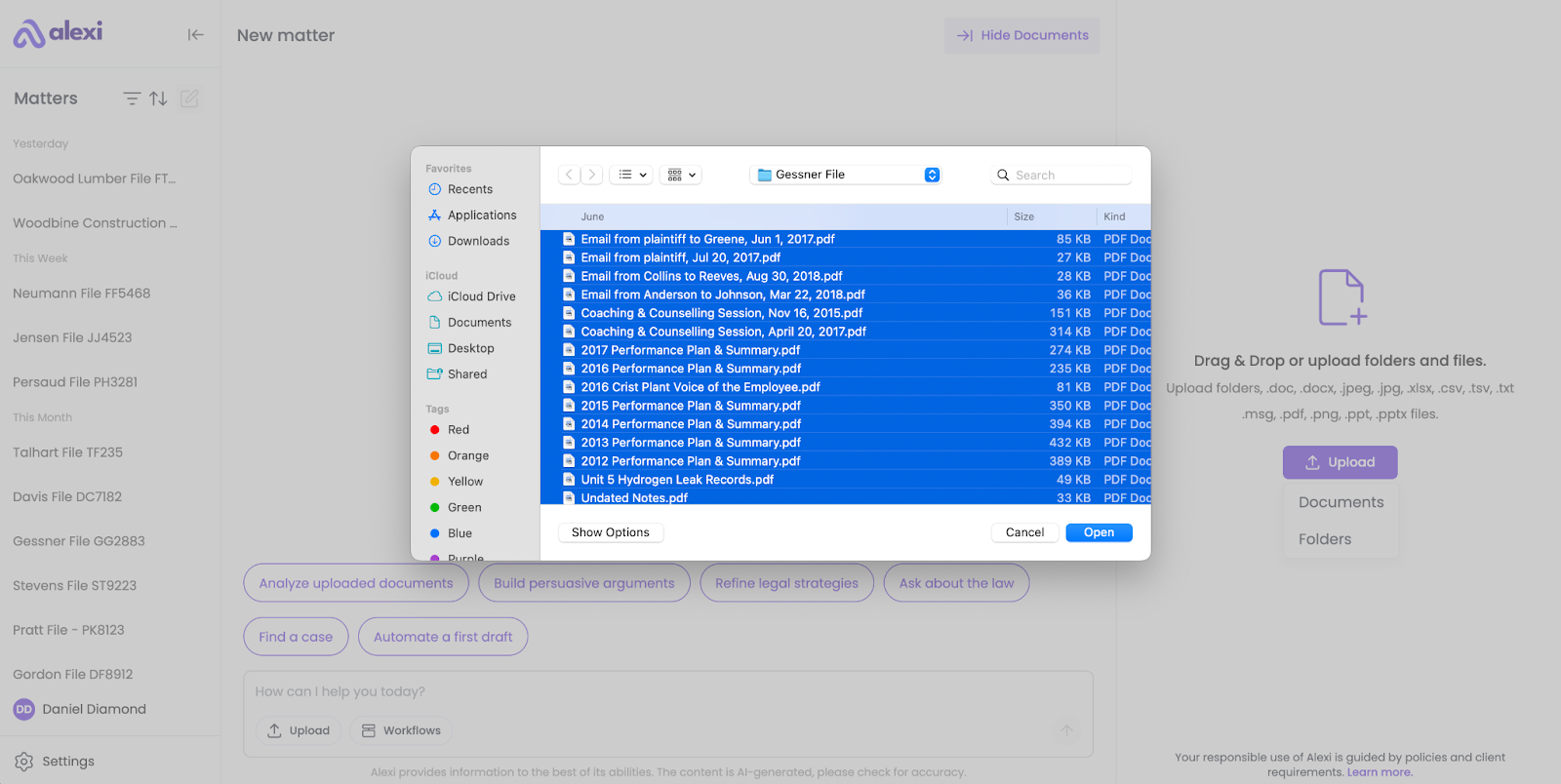
3. Select your files or folders from your computer.
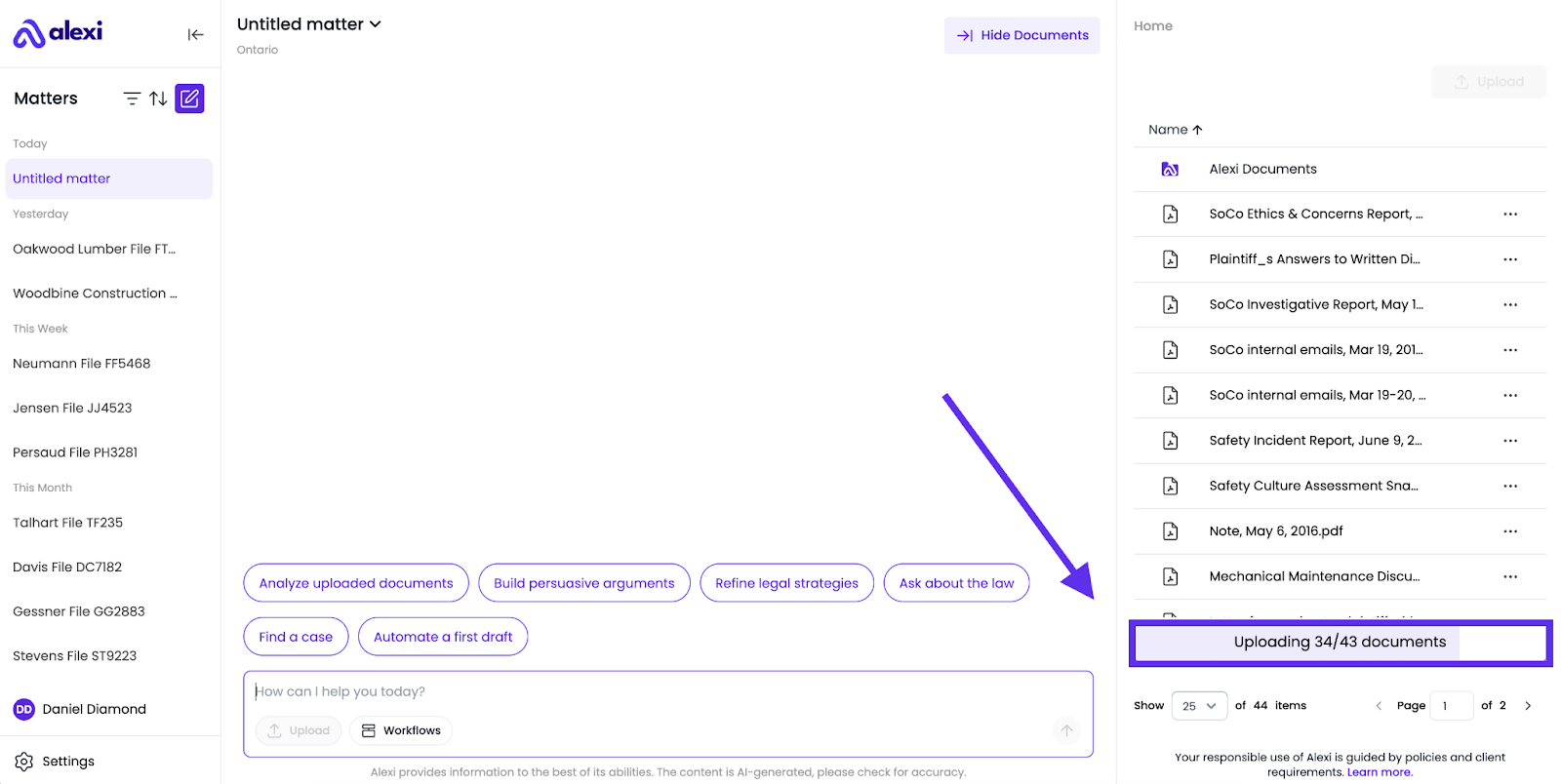
4. Ensure that you wait until your documents finish uploading before asking Alexi a question about them. You can view the progress of your upload in the progress bar at the bottom right.
Examples of document analysis questions you can ask:
- Review the attached employment agreement and identify termination clauses that may not comply with Ontario law.
- Summarize key risks for the tenant in the uploaded commercial lease.
- Provide a timeline of the events leading up to this action, based on the uploaded documents.
- Compare the indemnity clause in the uploaded contract against standard Canadian case law.
- What are the strengths and weaknesses of the Plaintiff’s whistleblower claim, based on the uploaded evidence and relevant law?
Hyperlinks to your Documents in Alexi’s answers
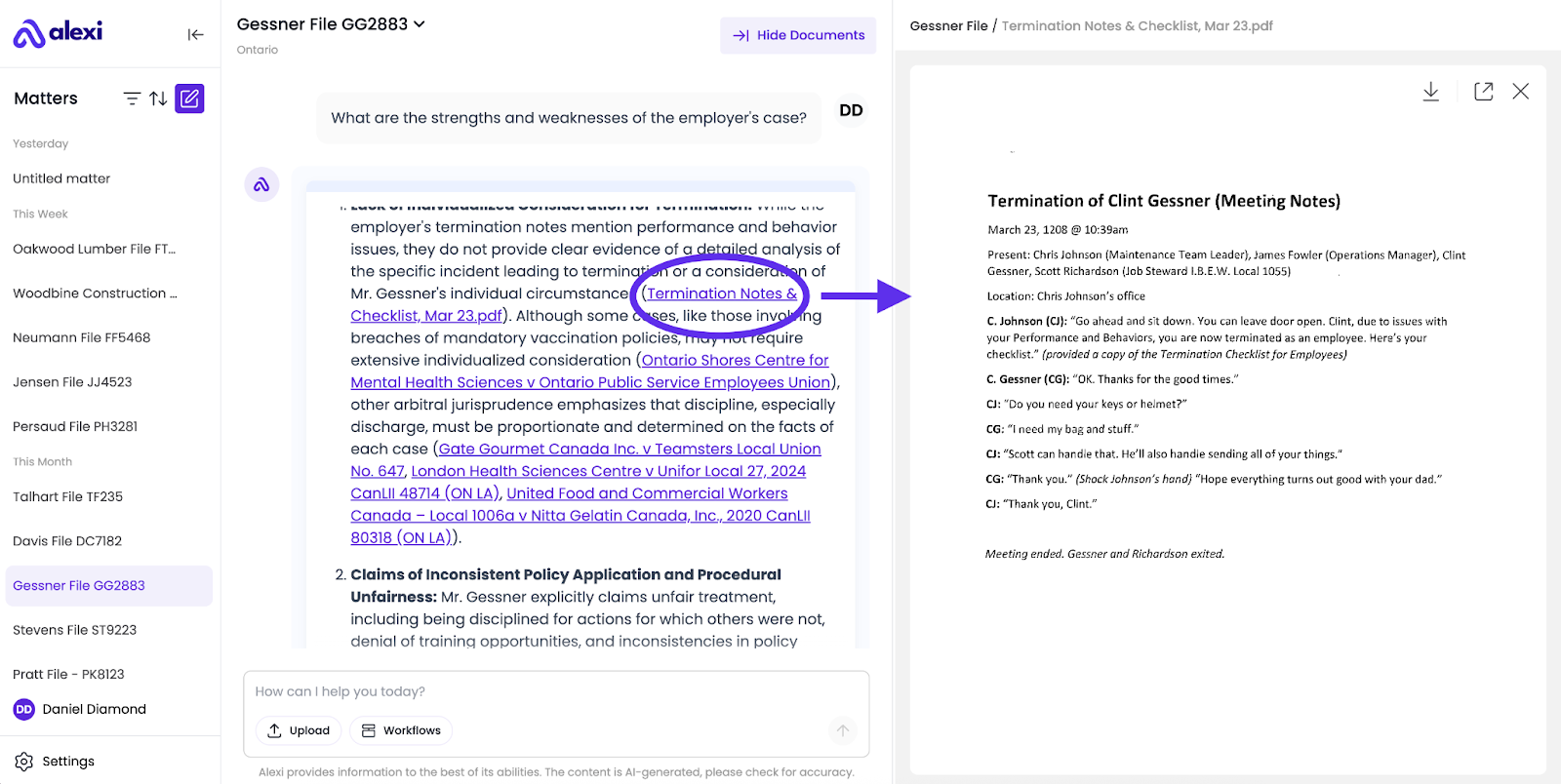
When asking a question about your documents, Alexi will include hyperlinks to the relevant pages that provide the source of the information for a given fact or assertion.
Simply Click on the link to open a document viewer on the right side of your screen. Here’s an example:
Best Practices
- Since Alexi is designed to provide relatively concise answers to your questions, try to be specific when referencing certain documents, as Alexi won’t provide a fully comprehensive summary of your documents if there are thousands of them.
- Example: If you ask Alexi to summarize your entire file, it won’t provide a 100-page line-by-line summary. Instead, it will find the most relevant information across all your documents, and summarize only the most pertinent details.
- Wait until all of your documents complete the upload process before asking questions about them, otherwise Alexi may be lacking the context it needs to provide a high-quality answer.
FAQ
What are the document upload limits?
You can upload up to 10,000 documents in a single matter, and each document can be up to 120 MB in size.
How do I know my documents are safe and secure?
All your data within Alexi, including sensitive and confidential client information, is fully protected using industry-grade security measures. Alexi is SOC2 certified, and does not use your data to train our AI, or any third party platforms. Learn more on our Security page.
What kinds of files should I upload?
Contracts, agreements, policies, medical records, discovery documents, spreadsheets, board presentations, or research memos. Anything you’d like Alexi to read and analyze.
What file types are supported?
Alexi supports the upload of files in any of the following formats: .doc, .docx, .jpeg, .jpg, .xlsx, .csv, .tsv, .txt, .msg, .pdf, .png, .ppt, .pptx.
How does referencing uploaded documents improve answers?
It grounds Alexi’ responses in the exact text you provided. Instead of a generic summary, you get tailored insights pulled from your own files.
How do I know which part of my document Alexi used?
Hyperlinks in answers let you click and instantly see the relevant page side-by-side with Alexi’s response, in order to provide transparency and visibility into Alexi’s thought process.
Can I upload images (like scans or screenshots)?
Yes. Alexi accepts JPEGs and PNGs. For best results, use high-quality scans with legible text so the AI can interpret them correctly.
Can Alexi read handwriting?
Yes, though it depends on the quality of the handwriting. If you can read it, Alexi likely can.
Does Alexi integrate with Document Management Systems (DMS) like iManage, NetDocs or FileVine?
This feature is not yet available out of the box, but is optionally available as an add-on. For further details, please reach out to your Alexi support team (support@alexi.com).
My documents are getting stuck and failing to upload?
You likely uploaded a file that is larger than the upload limit of 120 MB per document, or a file type tat is not supported. Supported file types include .doc, .docx, .jpeg, .jpg, .xlsx, .csv, .tsv, .txt, .msg, .pdf, .png, .ppt, .pptx.